Working the Workspace queue
Every tip your program receives lands in the Workspace queue: one card per tip, in the list on the left of the screen. Select a card and its evidence, the reporter’s dialog, and the actions you can take on it load beside the queue, in the same view.
Filter the queue
Section titled “Filter the queue”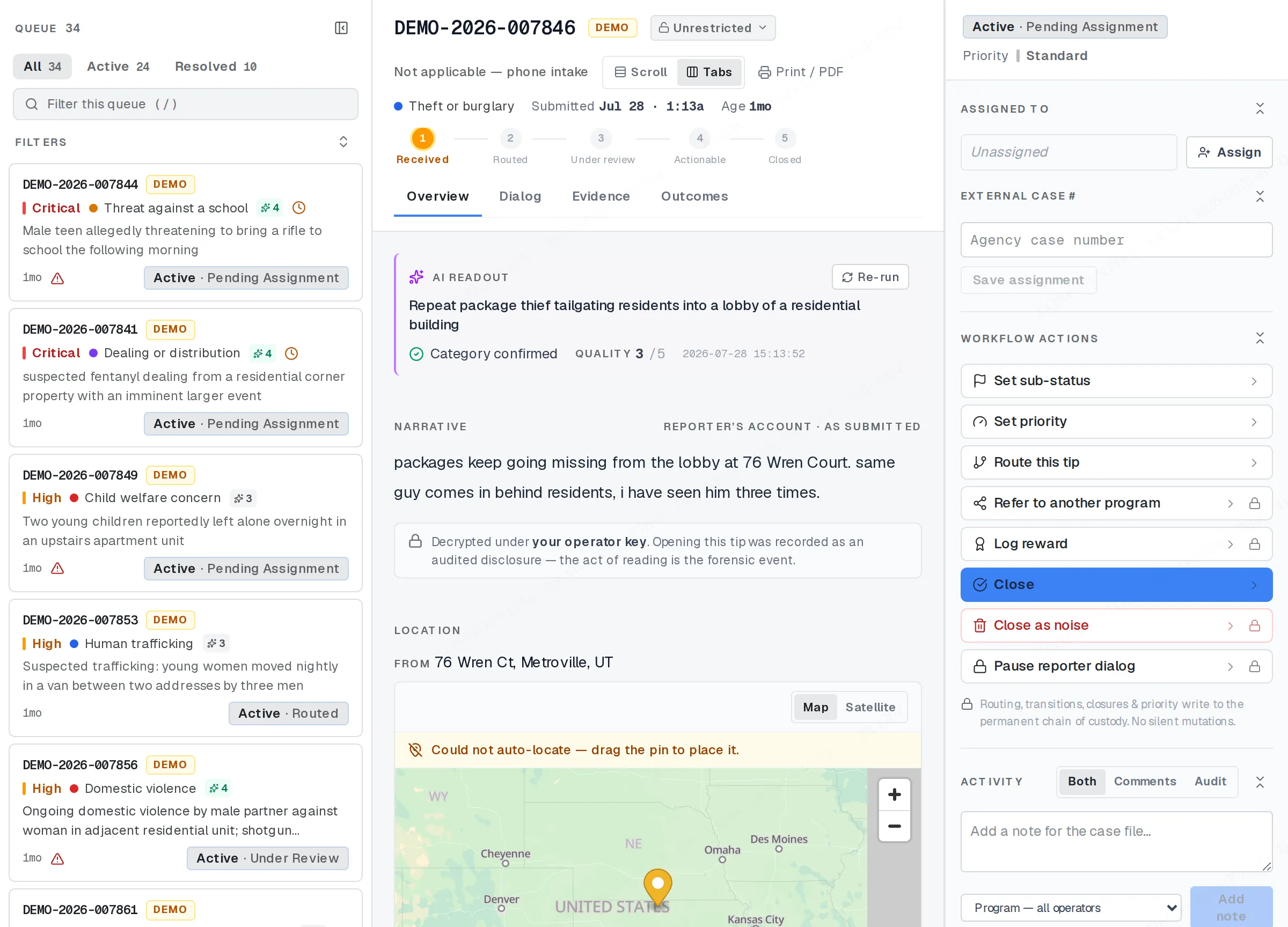
The Workspace queue with a tip open.
Three tabs sit above the list: All, Active, and Resolved. Active means the tip is still open; Resolved covers anything closed, however it got there.
Below the tabs, a search box narrows the list by reference number: your program’s own investigator reference, or an external case number if an agency has already supplied one. Press / from anywhere in the queue to jump straight to it.
Cards sort by priority, highest first. Each one also carries a few flags — unread messages, tips linked to this one, attachments — and a card you haven’t opened yet, or that’s had new activity since you last looked, stands out from the rest.
Open a tip
Section titled “Open a tip”Click a card to open it. Or move a highlight through the list with J and K and press Enter when you’re on the one you want. The highlight moves on its own, so you can scan the queue before committing to a tip.
Opening a tip decrypts it and writes a row to its audit trail: that’s a disclosure event, not a routine page load. See Reading a tip: the audited decrypt for what gets recorded and why it can’t be undone.
Change what happens to a tip
Section titled “Change what happens to a tip”Once a tip is open, its actions sit in the panel next to it. What’s available depends on where the tip already is and what your role allows:
- Assign or reassign — pick an operator from a searchable list, and set the agency’s own case number alongside it if one exists.
- Set sub-status — moves the tip along its status steps: Received, Routed, Under review, Actionable. The options shown depend on where it already is, and this turns off once the tip is closed.
- Set priority — critical, high, standard, low, or lowest.
- Route this tip, or refer it to another program — sends it to a recipient on your own team, or to a partner program your admin has paired with. See Routing, referring, and cross-program transfers for how each works and what the other side sees.
- Log a reward — record the amount, the reason, and, if you have them, the outcome type and a case reference.
- Close — pick a closure outcome, a sub-status under it, and a reason.
- Close as noise — for a tip that’s out of scope, a duplicate, or otherwise not worth investigating. That’s a separate call from a closure outcome, and it asks you to confirm before it goes through.
- Reopen — available once a tip is closed, within your program’s reopen window. A reason is required, and past that window, only a system administrator can bring it back.
Every one of these writes to the tip’s audit trail the moment it happens, with your name attached. There’s no quiet version of any of them.
Related
Section titled “Related”- Getting started as an operator
- Reading a tip: the audited decrypt
- Routing, referring, and cross-program transfers
- AI insights on a tip
If an action is missing or grayed out for your role, your program admin can tell you what’s turned on for it.