First login and required two-factor setup
The first time you sign in, you set up a second factor before you can reach the call-center screen. Every operator account requires this. There’s no way to skip it, and no role is exempt.
Sign in
Section titled “Sign in”- Go to the sign-in page for the call-center screen.
- You’ll land on a screen titled with your program’s name, under the heading “Operator Portal.” Select the sign-in option your program has set up for you. Most programs use Sign in with Google Workspace. If you see more than one option, or you’re not sure which applies to you, ask your supervisor: this is set per program and isn’t something you can tell just by looking at the screen.
- Whichever option you use, TypVault checks the account against your program’s operator list before letting you in.
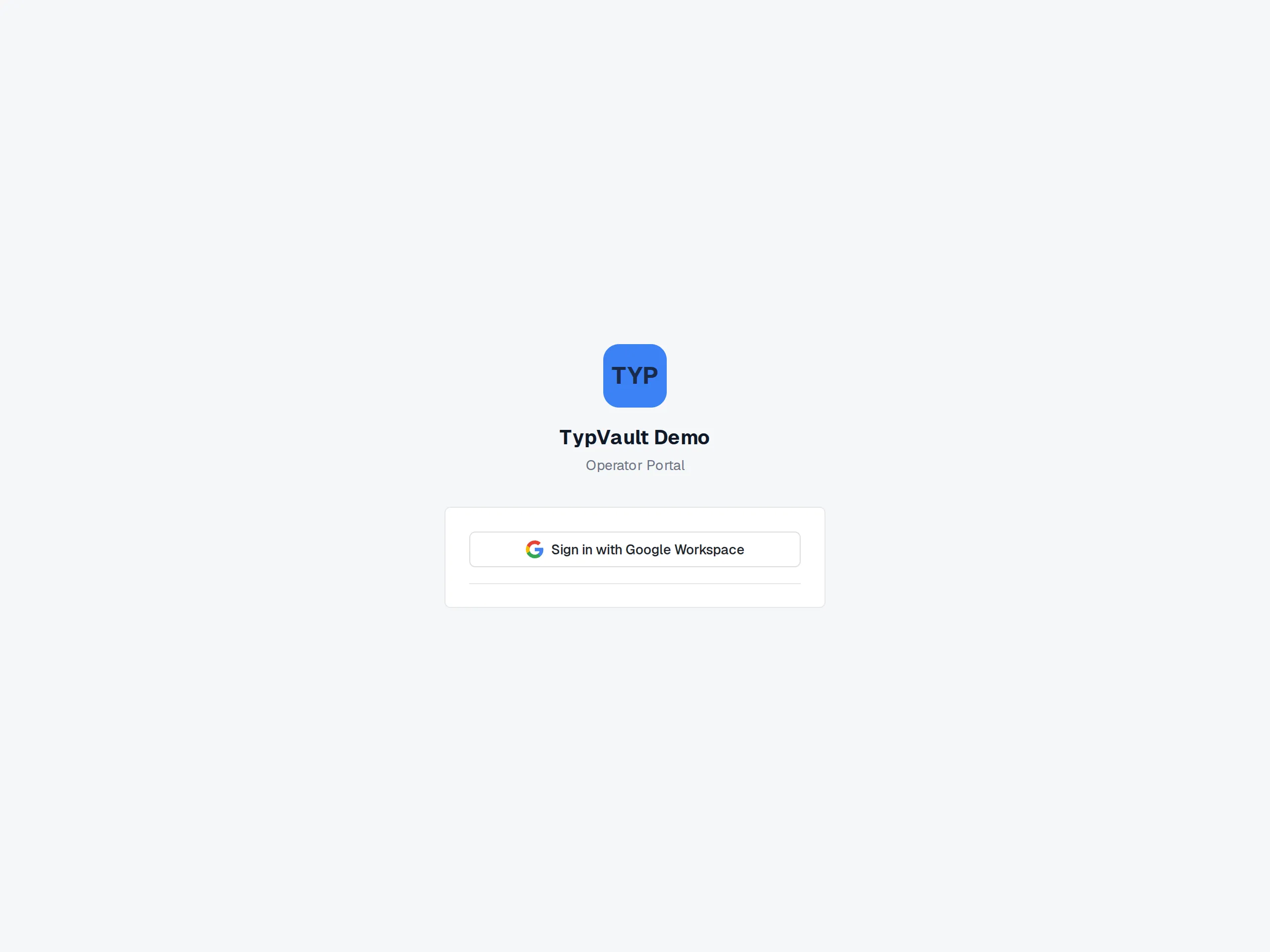
The sign-in screen as it appears on the demonstration deployment.
Set up your second factor
Section titled “Set up your second factor”This only happens once, the first time you sign in. After that, see “Every sign-in after this one” below.
- You’ll see a screen with this instruction: “Operator accounts require a second factor. Set up an authenticator app to continue.” Click “Set up authenticator app.”
- Open an authenticator app on your phone — Google Authenticator, 1Password, Authy, or similar — and scan the QR code on the screen. Can’t scan it? Type in the manual entry key next to it instead.
- Enter the 6-digit code your app now shows, then click “Verify.”
- You’ll see your backup codes: ten of them, shown once.
- Save them somewhere safe right now. This screen won’t appear again.
- Check “I’ve saved these codes,” then click “Continue.”
Every sign-in after this one
Section titled “Every sign-in after this one”You’ll land on a screen titled “Two-factor check.” Enter a fresh 6-digit code from your authenticator app each time, not your backup codes. Backup codes are only for when you’ve lost access to the app itself, not a routine sign-in method.
If your account also has a passkey set up, you may be offered that as a faster option: your device’s own fingerprint, face, or security-key prompt, instead of typing a code. Ask your supervisor if you’re not sure whether your program uses this.
Too many incorrect codes in a row locks the attempt for a short time. Wait it out, or use a backup code if you have one saved.
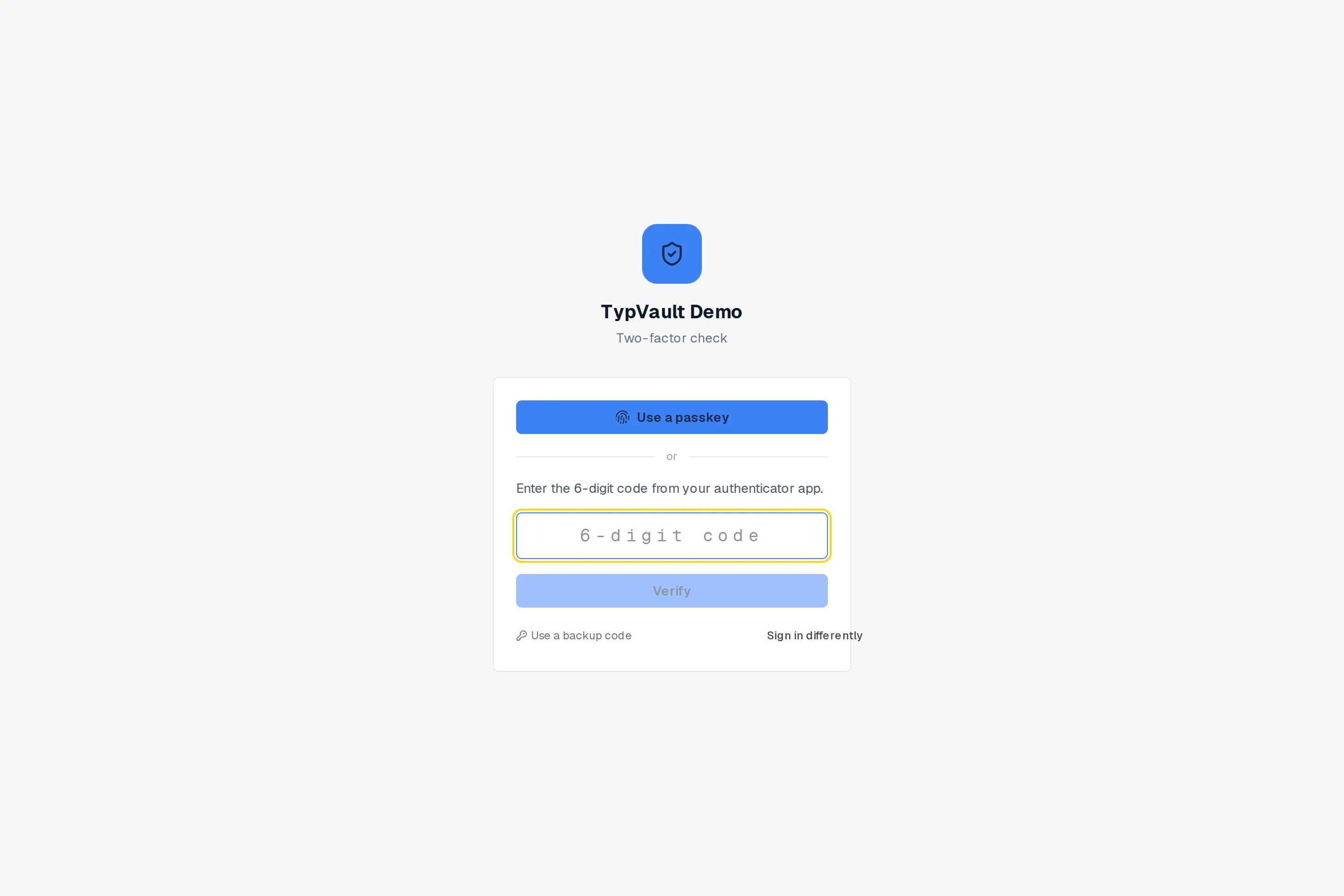
The two-factor check you see on every sign-in after setup.
If you’re locked out or need a reset
Section titled “If you’re locked out or need a reset”You can’t reset your own second factor. A program admin has to do that for you. Contact your supervisor if you’ve lost your phone, lost your backup codes, or the screen won’t accept a code you’re sure is right.
Related
Section titled “Related”- Conduit mode: your role on the call
- Taking a call
- Practice on the demo
- Signing in and two-factor authentication
If your screen doesn’t match these steps, ask your supervisor before you take a call.