Your Home dashboard and triage
Home is the page you land on when you sign in: a personal snapshot of your caseload, not the place where you work a case.
What you land on
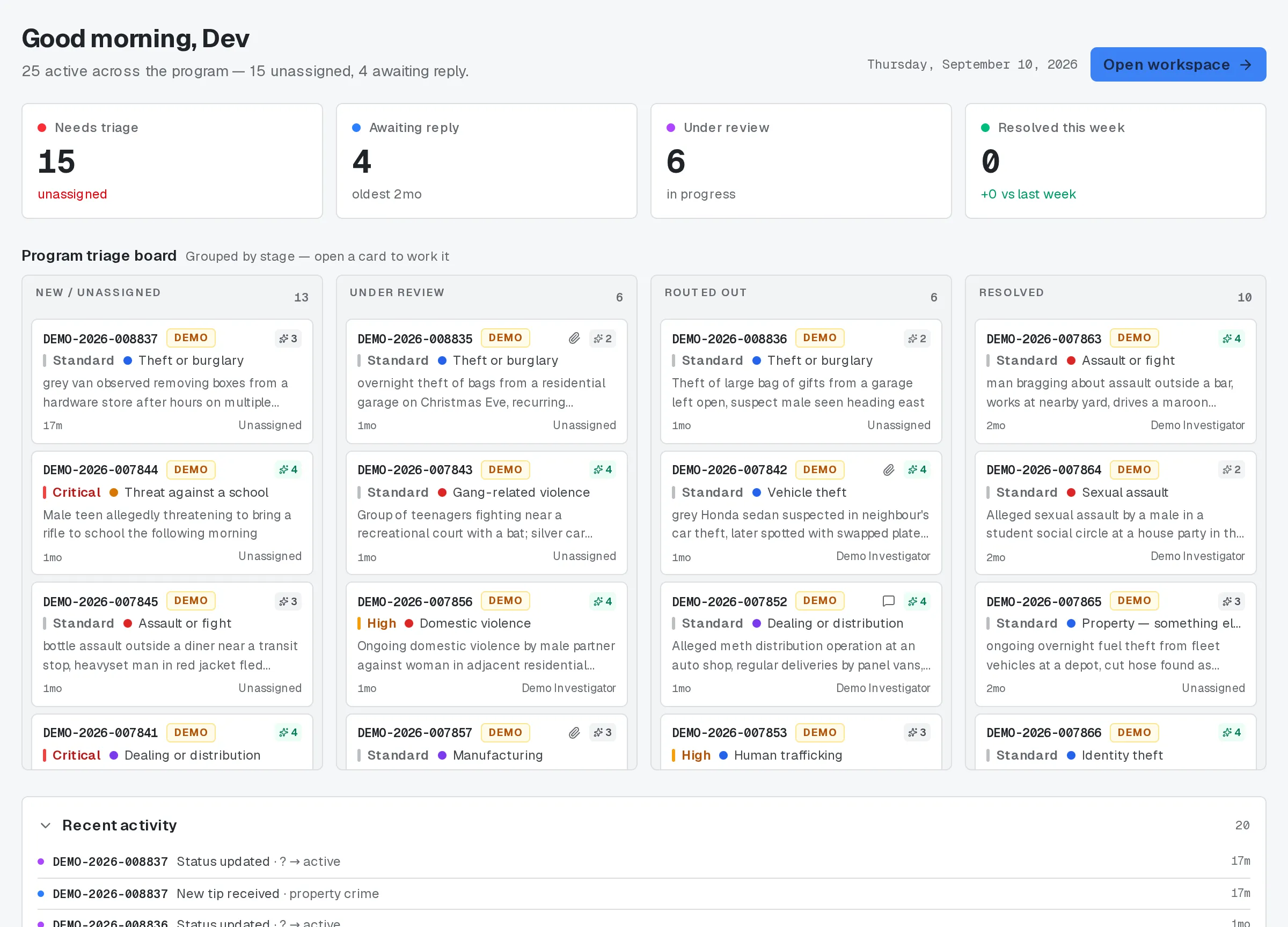
Section titled “What you land on”A short line at the top tells you where things stand — how many tips need you, and whether any are critical. Next to it, a button takes you straight into your Workspace: Go to my queue for most staff, Open workspace for a program admin, since a program admin’s Home covers the whole program rather than one person’s queue.
What you land on.
Your tiles
Section titled “Your tiles”Four tiles sit below the greeting. For most staff they read: tips that need you now, replies you haven’t answered yet, cases you’re currently reviewing, and how many you closed this week against last week. A program admin sees the same four ideas at the level of the whole program instead of one queue — how many tips are still unassigned, how many are awaiting a reply, how many are under review, and the week-over-week close count.
You can drag a tile to put whichever one you check first, first. That order, and whether the activity feed further down is expanded or collapsed, follows your account — it’s still set the next time you sign in, even from a different computer.
Reading your triage board
Section titled “Reading your triage board”Under the tiles is a board with four columns. It’s a live picture of where your tips already stand, built from the same status a tip carries in the Workspace — nothing changes by looking at it. Moving a case forward happens in the Workspace, not here.
- New for me (New / unassigned for a program admin) — tips that haven’t been marked under review or routed out yet.
- I’m reviewing (Under review for a program admin) — tips currently marked under review.
- Routed out — tips you’ve already routed somewhere else.
- Resolved — your most recently closed tips, newest first.
Each card leads with a short case reference — never the tip’s internal record ID — plus a priority mark and a category label. A message icon means a reporter has replied since you last looked; a paperclip means the case has an attachment. Some cards also carry a short descriptor line and a small quality score, but only once a tip has already been read by the automated analysis described in AI insights on a tip — until then, the card just doesn’t show one.
Click any card to open the case in your Workspace.
Reporter replies, your day, and team workload
Section titled “Reporter replies, your day, and team workload”Below the board, a short list surfaces cases where a reporter has replied or something changed since you last checked, newest first, each linking straight into the Workspace. Standard staff also get a short rundown of the day underneath: what’s assigned, what’s still critical, and how many you resolved this week. A program admin sees a team workload view in that spot instead, showing how active tips are currently spread across the people on the program.
Recent activity
Section titled “Recent activity”Further down, a collapsible feed lists recent events — new tips, status changes, messages, rewards, outreach — limited to whatever you have permission to see, each one linking back to its case when it has one. Collapse it if you don’t need it open every time; your choice is remembered.
Related
Section titled “Related”- Getting started as an operator
- Statuses and case lifecycle
- Reading a tip: the audited decrypt
- AI insights on a tip
If Home shows something that doesn’t match what you actually have, ask your program admin — role and compartment settings shape what lands here, and your program’s exact setup may differ from this page.