Entities and entity search
An entity is a suspect, a victim, or a vehicle that an investigator has typed into a tip as its own structured entry — separate from the narrative the tipster wrote. Recording one makes it something the console can match against every other tip you’re authorized to see, not just the one it came from.
Suspects, victims, and vehicles
Section titled “Suspects, victims, and vehicles”No entity gets created on its own — an investigator decides what belongs in one, reads the tip, and types in the specific facts worth tracking. Three kinds are available:
- Suspect or victim — a name, aliases, a description, an approximate age, and a phone number.
- Vehicle — make, model, color, year, license plate, and plate state.
Every kind also takes a short free-text note. You don’t have to fill in every field, but at least one identifying detail beyond that note needs to be there — an entity with nothing but a note won’t save.
Adding an entity to a tip
Section titled “Adding an entity to a tip”- Open the tip and find the Extracted entities panel among its details.
- Select Add entity, then choose Suspect, Victim, or Vehicle.
- Fill in whatever details you have. Read the tipster’s account first, then translate the concrete facts — a name, a plate, a description — into the matching fields, rather than pasting in the sentence itself.
- Save. The entry joins a running, editable list on the tip, grouped by kind.
Any operator who can open the tip can see its entities. Recording, editing, or removing one takes more than a signed-in session — your account needs the base operator role, the same floor that gates most other tip actions.
The kind is fixed once you save an entity; every other field stays editable afterward, and removing one deletes it outright, with no separate archive step. Each add, edit, or removal writes its own entry to the tip’s activity trail — the kind of entity and, for an edit, which fields changed, never the values themselves.
Searching across every tip
Section titled “Searching across every tip”Entity Search, in the console’s main navigation, runs one query over every entity on every tip you’re authorized to see, whether or not it’s assigned to you. Pick a type (All, Suspects, Victims, or Vehicles), or switch to the dedicated License plate mode, enter your term, and results come back grouped: one result per matching entity, with every tip that mentions it listed underneath.
A search needs a real term — picking a type alone, with the box empty, returns nothing. Matches are capped at 100; if you hit the cap, narrow it by type, add more of the name or plate, or switch into License plate mode rather than trying to page further.
Your last several searches are remembered on your own operator account and offered back the next time you open the page. They don’t show up for any other operator, and they follow you if you sign in from a different device.
Running a search writes one entry to the audit trail — the term you searched, the mode, and how many matches came back, attributed to your account. Opening a tip from the results list is recorded on that tip’s own activity trail, the same as any other open.
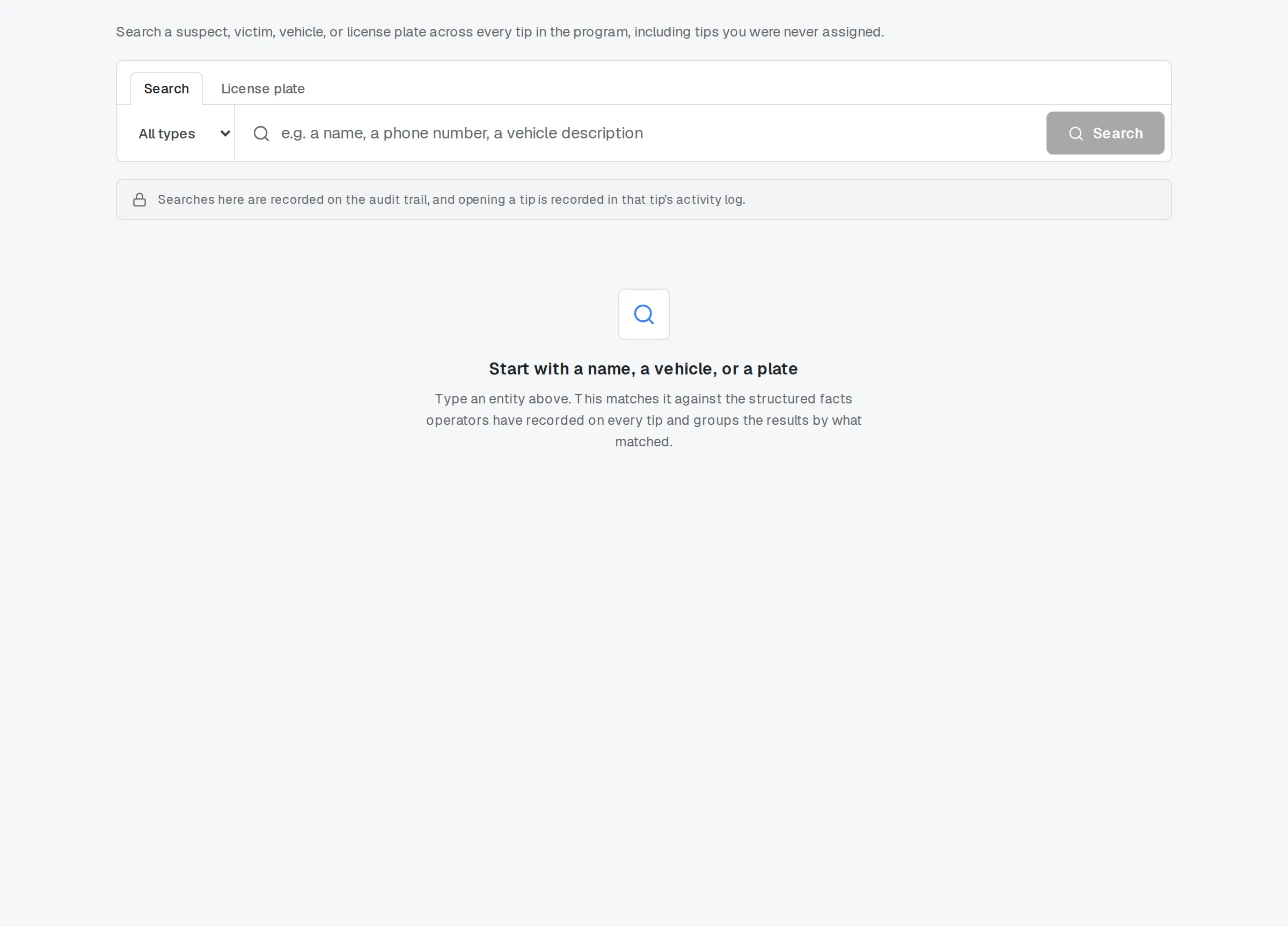
Entity Search.
Related
Section titled “Related”If the Extracted entities panel or Entity Search look different from what’s described here, ask your program admin — the version your program runs may not match this page yet.