Getting started as an operator
Sign in and you land on Home. From there, the console has two other places you’ll use every day: Workspace, where you open and work a tip, and Insights, where you see how the whole program is doing.
Home: your queue, at a glance
Section titled “Home: your queue, at a glance”Home is built around your own work. If you hold a standard operator role, it shows the tips assigned to you: how many need a first look, how many you’re waiting to hear back on, and how many you closed this week. If you’re a program admin, Home shows the whole program instead.
Below those counts, Home groups your active tips by stage — new, under review, routed out — so you can see where things stand. That grouping is a view: to move a tip forward, open it in Workspace and change its status there.
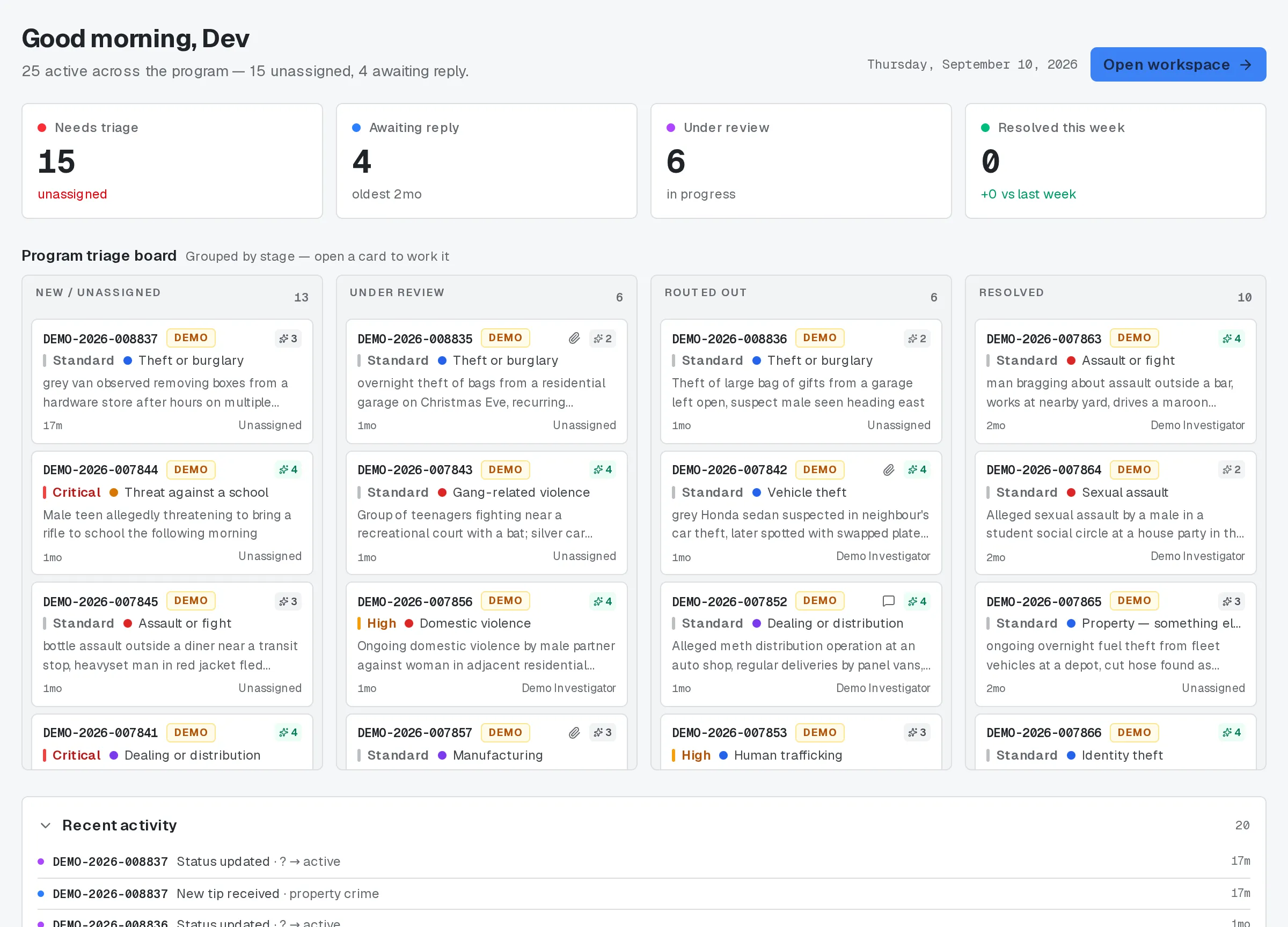
Home: your tiles and the triage board.
Workspace: where you do the work
Section titled “Workspace: where you do the work”Workspace is one screen with three parts: a queue on the left, the tip you’ve opened in the middle, and a set of actions on the right.
Opening a tip decrypts it so you can read it. That open is attributed to you and timestamped — every tip you look at leaves that record, with no way around it. See Reading a tip: the audited decrypt for the full picture.
From the action panel, you can set a sub-status or priority, assign the tip, route it to another team, refer it to another program, log a reward, or reopen a closed tip. Each of those is attributed and timestamped the same way opening the tip is.
If the tip has a message thread with the tipster, you’ll find it in the same view — see Messaging a tipster for how that works.
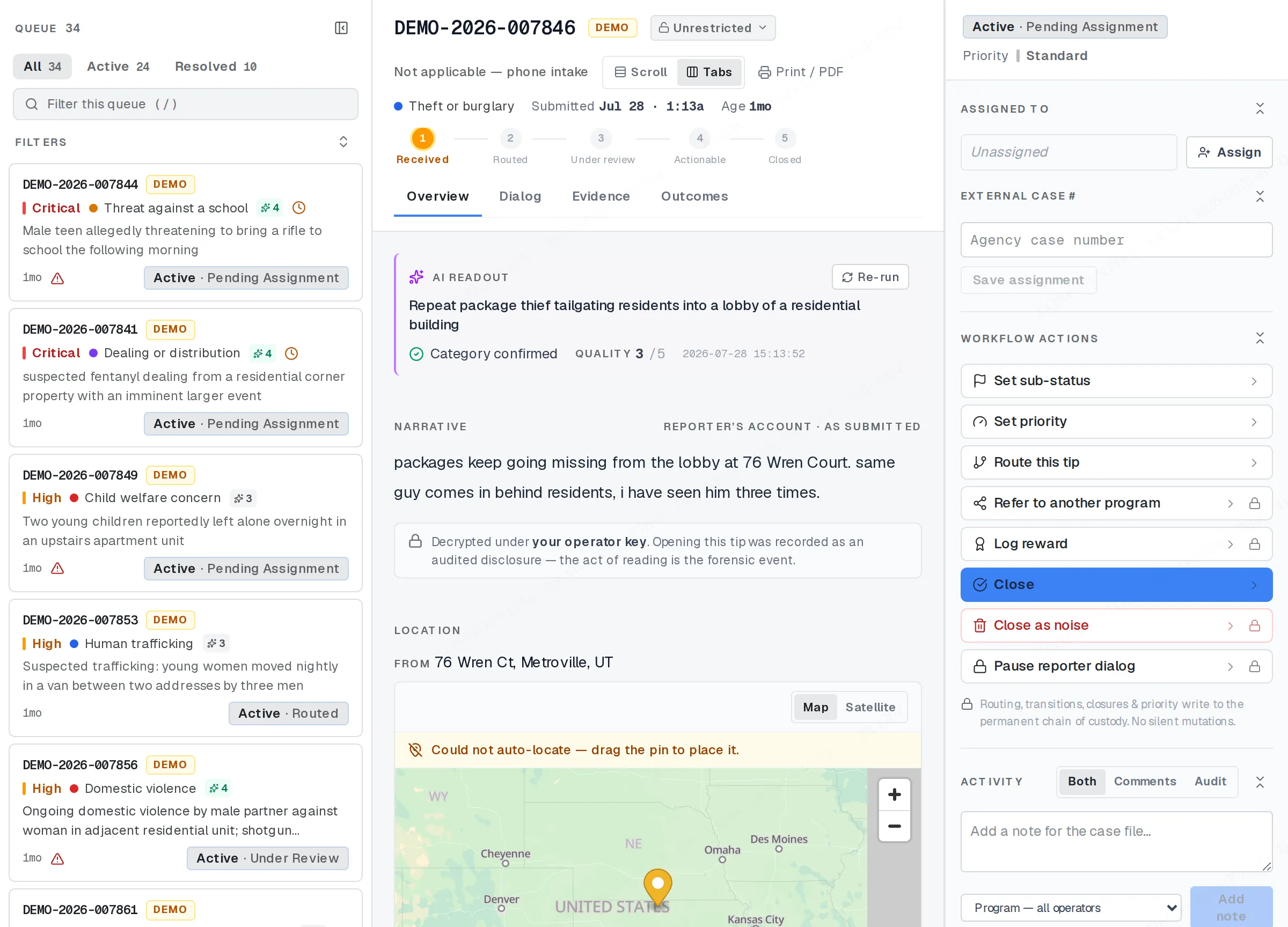
Workspace: queue, tip, and actions in one place.
Insights: the program-level view
Section titled “Insights: the program-level view”Insights doesn’t belong to any one tip. It’s where you see how tips move through the stages, where cases are piling up, and pull the data you need for reporting. Most days, you’ll live in Workspace and Home; Insights is for when you need the wider picture.
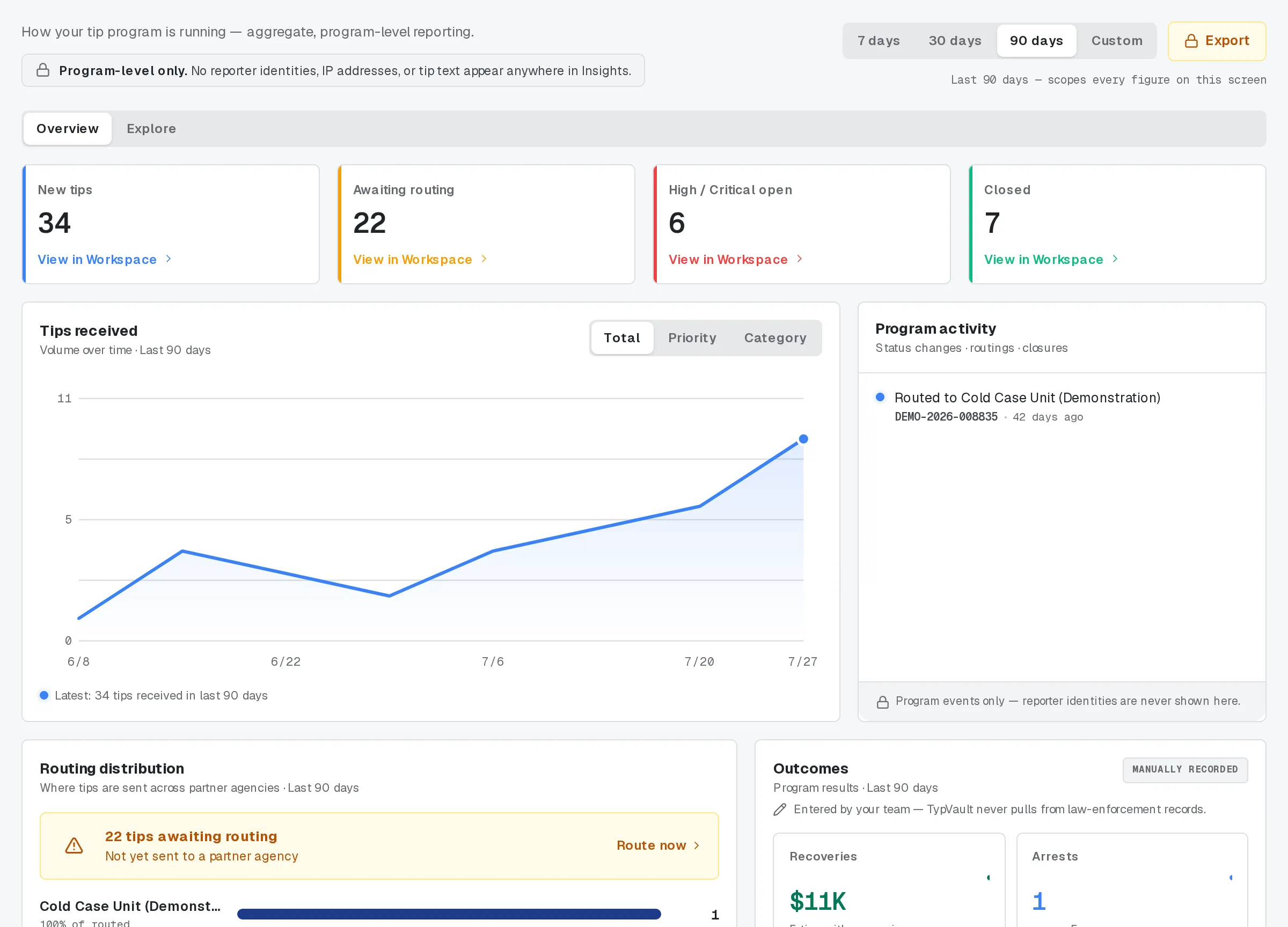
Insights: the program-level view.
Where to start
Section titled “Where to start”- Sign in and set up your second factor if you haven’t already — it’s required before you can reach any case. See Signing in and two-factor authentication.
- Open Workspace and pick a tip from the queue, so you can see how the three panes fit together.
- Try one action on that tip — a sub-status or a priority — so you know where the controls live before you need them under pressure.
- Check Home at the start of each session; it’s built to tell you what needs you first.
- Look at Insights once you’ve worked a few tips and there’s something worth measuring.
Each tip you open also carries a short automated readout, described in AI insights on a tip — it’s a supplement to your own reading of the tip, not a replacement for it.
Related
Section titled “Related”- Signing in and two-factor authentication
- Reading a tip: the audited decrypt
- Messaging a tipster
- AI insights on a tip
If your console layout doesn’t match what’s described here, your program admin can tell you what’s turned on for your role.