Taking a call: the Call Center screen
Go to Call Center in the left-hand navigation to take a call. Nothing on the screen is active until you click Start call. There’s nothing to fill in yet, because there’s no caller yet.
Start the call
Section titled “Start the call”Click Start call at the top right. The status bar switches to its live state, a timer starts counting up, and the message next to it changes to:
“Capturing anonymously — the caller stays anonymous, even to you.”
Open the call the way your program always has. This screen doesn’t script your greeting or your anonymity explanation, and it isn’t a substitute for your program’s life-safety protocol if a caller describes an emergency in progress.
Nothing you enter is sent anywhere, or becomes part of any record, until you confirm and log the tip at the end of the call. If the caller hangs up before that, close out with End call. There is nothing left over to clean up.
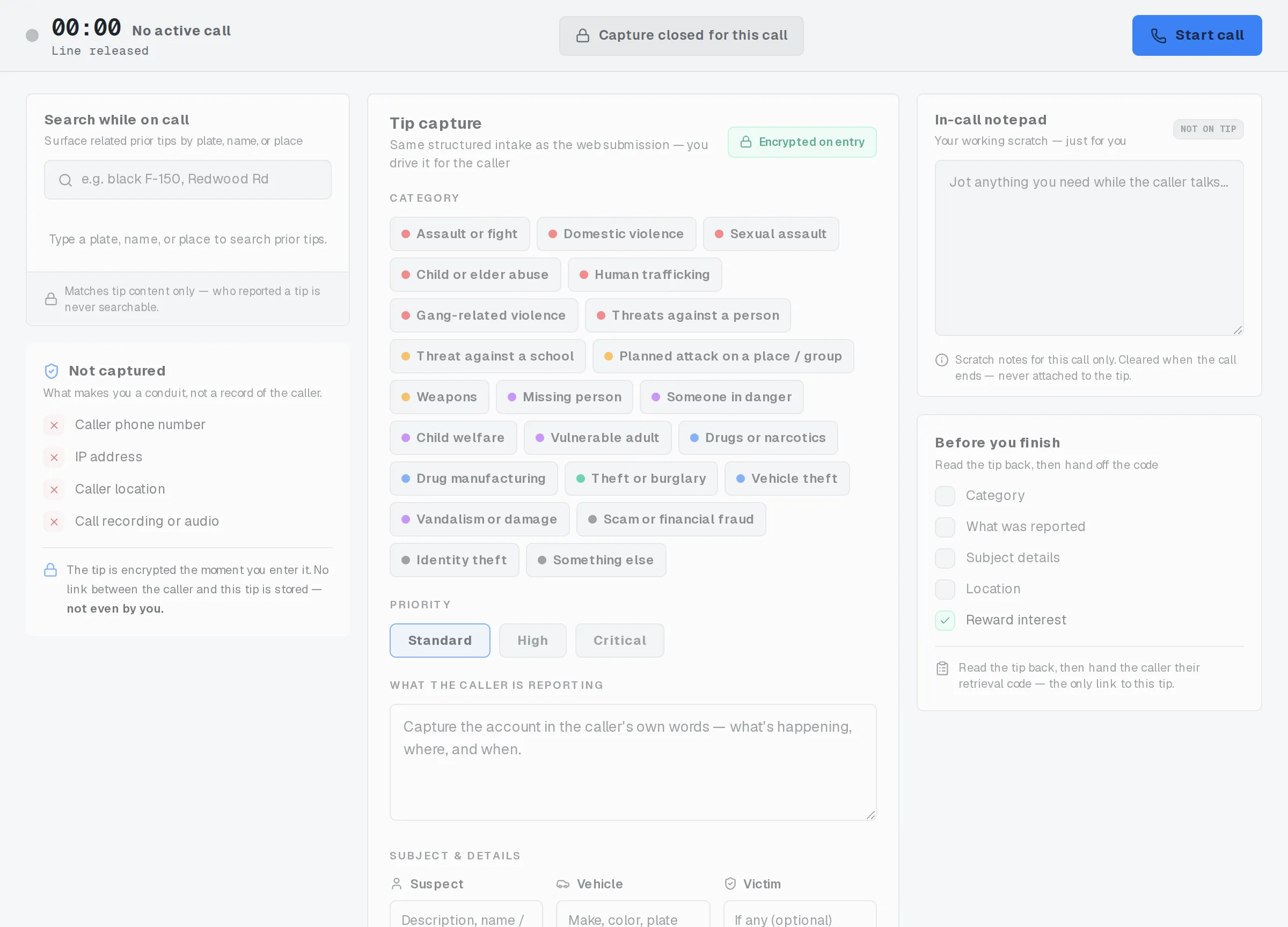
The screen before a call. Nothing is being captured yet.
The console while a call is live
Section titled “The console while a call is live”Once you’re live, the screen splits into three panels: search and the anonymity guardrail on the left, tip capture in the center, and your notepad and checklist on the right. Until a call is live, all three stay dimmed and locked, and there’s nothing to click.
The left panel’s search box, Search while on call, lets you check whether a plate, name, or place the caller mentions matches an earlier tip. It’s covered in full in Searching during a call.
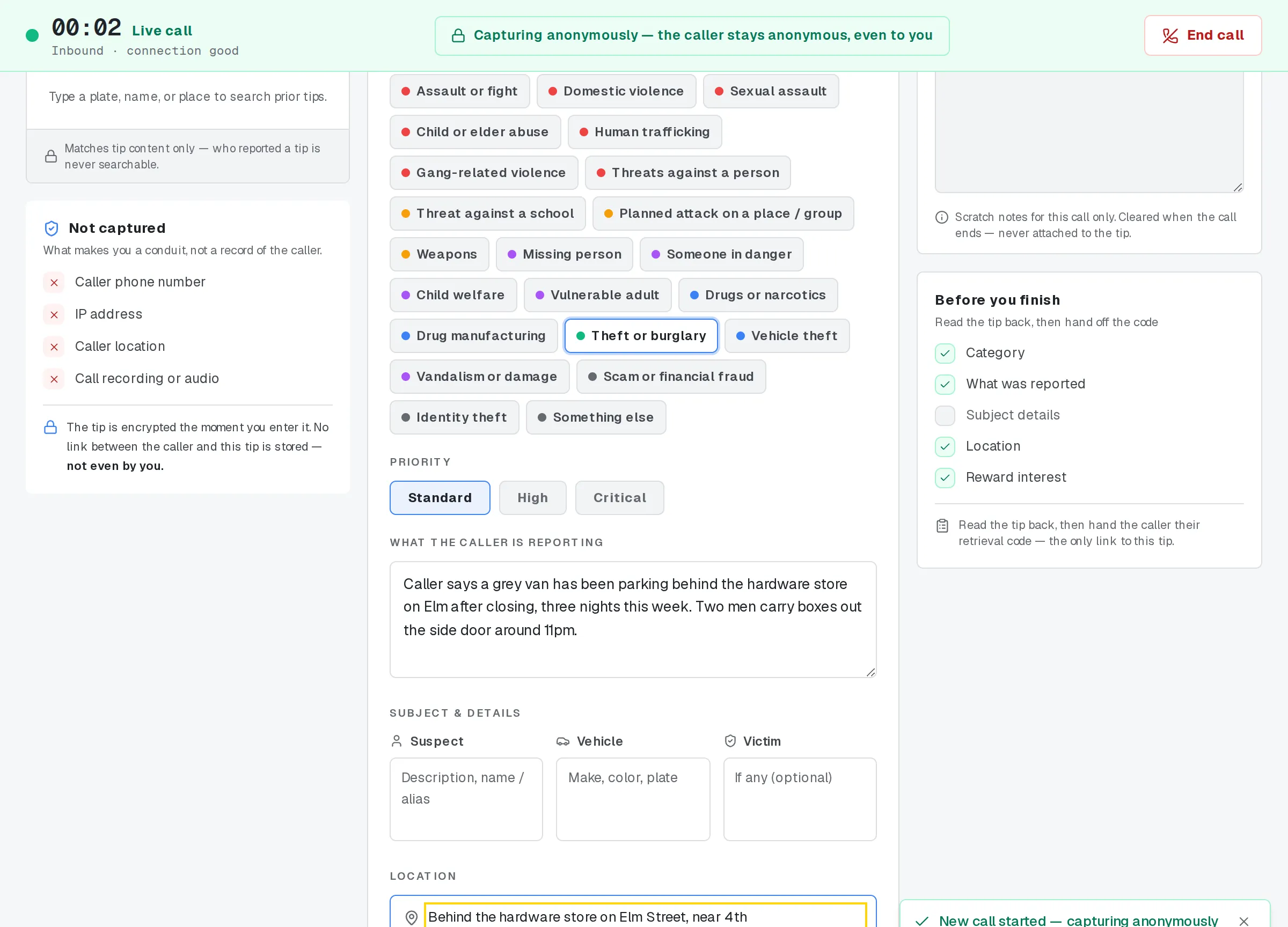
A live call: the timer runs and the capture form is open.
Fill in the tip capture form
Section titled “Fill in the tip capture form”As the caller talks, fill in the center panel. Nothing here has to happen in a set order, and you can change any of it until you log the tip.
- Category: click the chip that fits best: Assault or fight, Domestic violence, Sexual assault, Child or elder abuse, Human trafficking, Gang-related violence, Threats against a person, Threat against a school, Planned attack on a place / group, Weapons, Missing person, Someone in danger, Child welfare, Vulnerable adult, Drugs or narcotics, Drug manufacturing, Theft or burglary, Vehicle theft, Vandalism or damage, Scam or financial fraud, Identity theft, Something else. You can pick only one, and you can switch it any time before you log the tip.
- Priority: Standard, High, or Critical. Pick whichever matches the urgency of what you’re hearing.
- What the caller is reporting: the narrative box. Write what the caller tells you, in their own words: what’s going on, where, and when. This is the core of the tip.
- Subject & details: three separate boxes: Suspect (description, name, or alias), Vehicle (make, color, plate), and Victim (if there is one). Leave any of them blank if it doesn’t apply.
- Location: the address, cross streets, or general area the caller describes.
- Reward: a toggle for “Caller wants to be considered for a reward.” Turn it on only if the caller says so. They’ll use their retrieval code to follow up on it. No identity needed.
Before you finish: the checklist
Section titled “Before you finish: the checklist”A checklist on the right tracks five things as you go: Category, What was reported, Subject details, Location, and Reward interest.
Reward interest always shows as done, whether or not the caller wants one. There’s nothing to complete either way, since the toggle is optional. The other four tick off as you fill in the matching field.
This list is a visual reminder only. It doesn’t stop you from logging the tip with something still blank.
Conduit-mode rules for this screen
Section titled “Conduit-mode rules for this screen”A few rules apply to this screen specifically, on every call:
- Never type anything that could identify the caller — a name, a phone number, or anything similar — anywhere on this screen, including the notepad.
- Never write down the caller’s retrieval code yourself. The caller keeps it; you don’t.
- Never keep a personal note that maps a caller to a case number.
- Never keep an off-system copy of tip content: no separate document, message, or file with what the caller told you.
- Treat the in-call notepad as scratch for this call only. It’s never sent anywhere, and it clears the moment you end the call.
- Search by tip content only. It’s never a way to look up who reported a tip.
- Read the retrieval code aloud once, and have the caller read it back to confirm it. Don’t keep a copy of it anywhere else.
- There’s no field for a caller’s phone number, IP address, location, or a recording of the call. Don’t improvise one elsewhere.
- Treat nothing as saved until you’ve confirmed and logged the tip. Until then, nothing you’ve typed has gone anywhere.
For the reasoning behind these rules, see Conduit mode: your role on the call.
Nothing is saved until you confirm the tip
Section titled “Nothing is saved until you confirm the tip”Everything above lives only in your browser tab while you’re on the call. None of it reaches the server, and none of it becomes part of the tip, until you open the read-back window and confirm the tip is accurate. Logging it at that point is what creates the record, generates the retrieval code, and encrypts the tip on the way in.
If the caller hangs up before you log the tip, nothing has been created. There’s nothing to undo, and no partial tip left behind. You’d start over with Start new call if they reach you again.
The read-back window, the hand-off screen, and what happens to the tip afterward are their own steps: see Read-back and logging and Handing off the retrieval code.
Related
Section titled “Related”If a caller’s situation doesn’t match these steps, follow your program’s call-handling policy.