Signing in and two-factor authentication
You sign in with your program’s Google Workspace account, then confirm a second factor. Every operator account needs one: there is no lighter tier and no grace period after your first sign-in.
Sign in
Section titled “Sign in”- Open your program’s sign-in page.
- Select Sign in with Google Workspace and complete Google’s own prompts.
- TypVault checks your account against the program’s operator list. Google confirms who you are; TypVault confirms you belong here.
If your account already has a working second factor, you’re asked to verify it next. If not, you’re sent to set one up first. It can’t be skipped, so budget a couple of minutes the first time through.
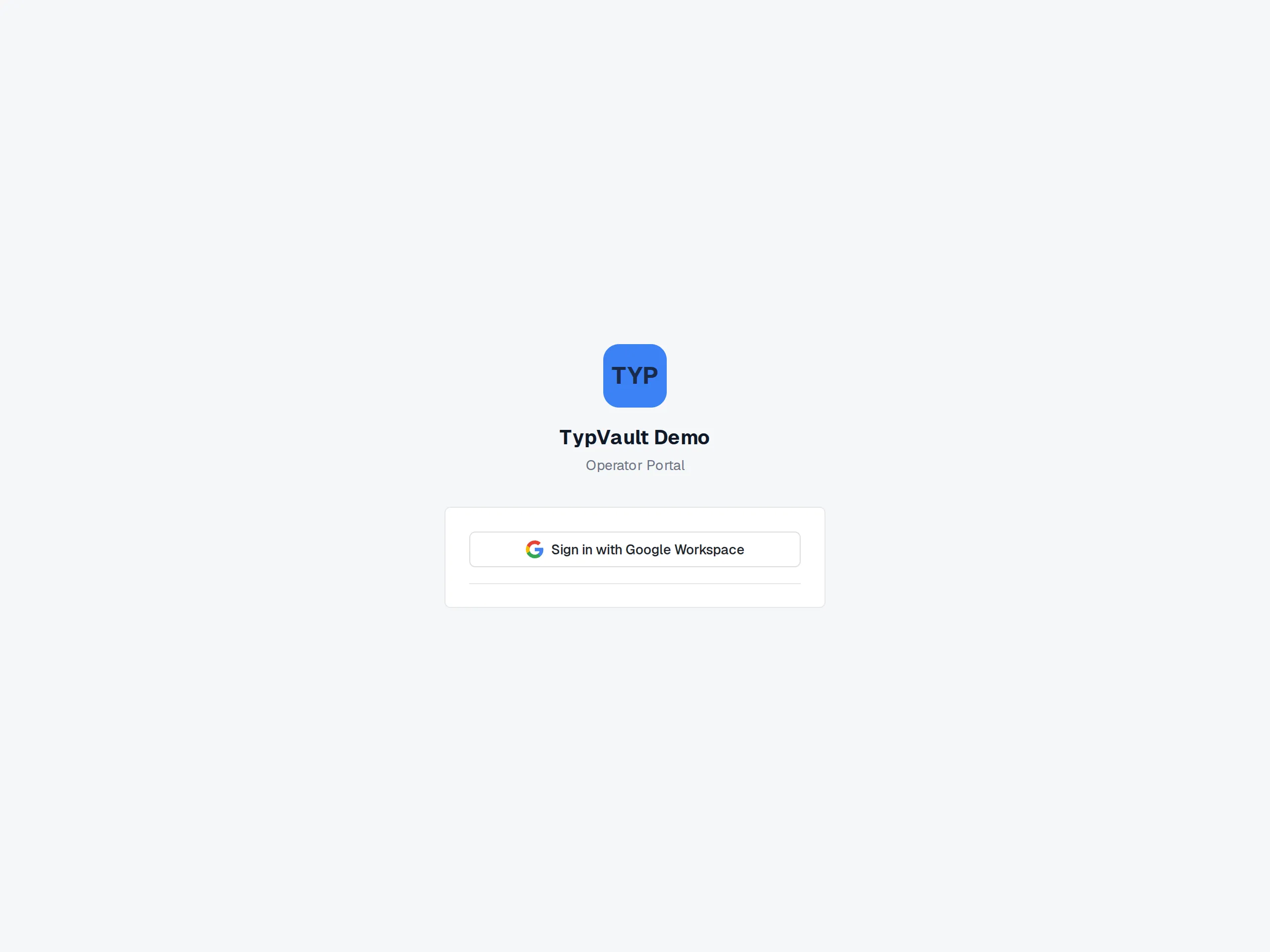
The sign-in screen.
Set up your second factor
Section titled “Set up your second factor”Enrollment uses an authenticator app: Google Authenticator, 1Password, Authy, or anything that reads a QR code.
- Open the authenticator app on your phone.
- Scan the QR code TypVault shows you, or type in the setup key by hand if scanning isn’t an option.
- Enter the 6-digit code the app generates, to confirm the setup worked.
- Save the ten backup codes shown next. TypVault shows them exactly once: write them down or keep them somewhere safe before you move on.
Each backup code works one time. They’re a fallback for when your authenticator app isn’t handy, not an everyday sign-in method.
Verify at sign-in
Section titled “Verify at sign-in”Once you’re enrolled, every sign-in asks for your second factor before you reach any case data.
- With a passkey: select it and complete your device’s own prompt (fingerprint, face, or security key). One tap and you’re through.
- With your authenticator app: enter the current 6-digit code.
- With a backup code: switch to backup-code entry and enter one of your saved codes. Each one works only once.
Too many wrong codes in a row locks the attempt for a short time. Wait it out, or try a different factor if you have one enrolled.
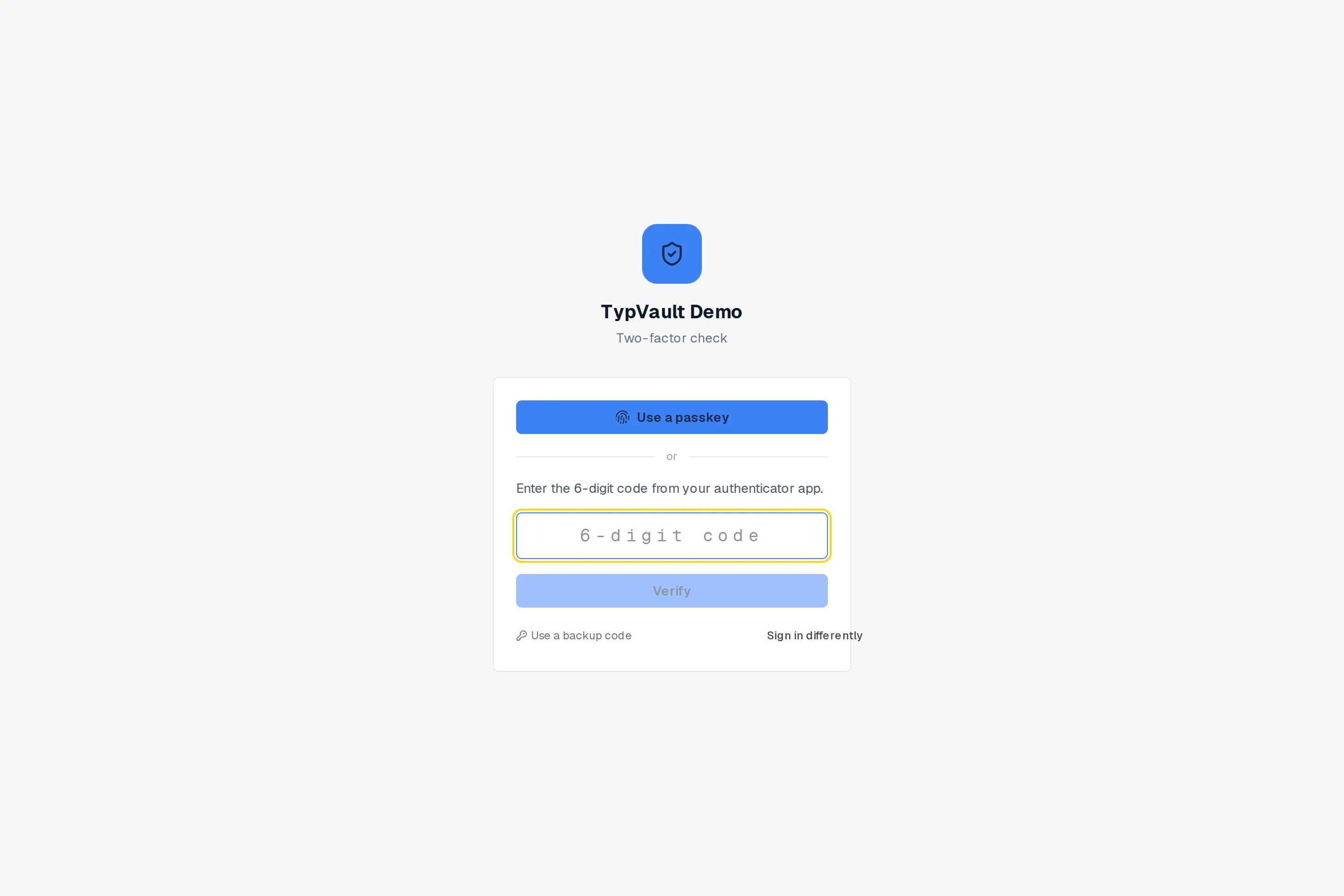
The two-factor check.
Add a passkey
Section titled “Add a passkey”A passkey is additional, not a replacement. You set up your authenticator app first, then add a passkey afterward from your profile page. It’s a faster, phishing-resistant way to verify: no code to type, just your device’s own fingerprint, face, or security-key prompt.
Add as many passkeys as you use devices. Each one is labeled so you can tell them apart, and you can remove any of your own passkeys yourself at any time. Your authenticator app stays as your base factor, so removing a passkey never locks you out.
If you lose your authenticator app
Section titled “If you lose your authenticator app”Lost your phone or your backup codes? You can’t reset your own second factor. That’s by design, since a factor reset is a security downgrade that needs a second person to approve. Ask a program admin to reset it for you.
A program admin resets your factor from the user list. Once they do, your old authenticator app and backup codes stop working, and you set up a new one the next time you sign in. The reset itself is logged.
Related
Section titled “Related”If your sign-in screen looks different from what is described here, ask your program admin.