Read-back and logging the tip
You read back everything you’ve captured in a confirmation window, get the caller’s agreement that it’s right, then click one button that encrypts the tip and adds it to the queue. Nothing you’ve entered is saved anywhere before that click.
Open the read-back window
Section titled “Open the read-back window”- Once you have at least a category and the narrative filled in, click Review & read back at the bottom right of the capture panel, or press Ctrl+Enter (Cmd+Enter on a Mac).
- The button stays dimmed, and the shortcut does nothing, until both of those are filled in. Subject, vehicle, victim, location, and the reward toggle are all optional at this point.
What the window shows you
Section titled “What the window shows you”A window titled “Read back to the caller” opens, with the note “Confirm the tip with the caller before it’s logged and encrypted.” It lays out exactly what’s on the capture screen right now:
- Category and priority, together at the top
- “What was reported”: the narrative, exactly as you wrote it
- Suspect, Vehicle, and Victim, each shown only if you filled it in
- Location, or a dash if you left it blank
- Reward: either “Caller wants to be considered for a reward” or “Not requested”
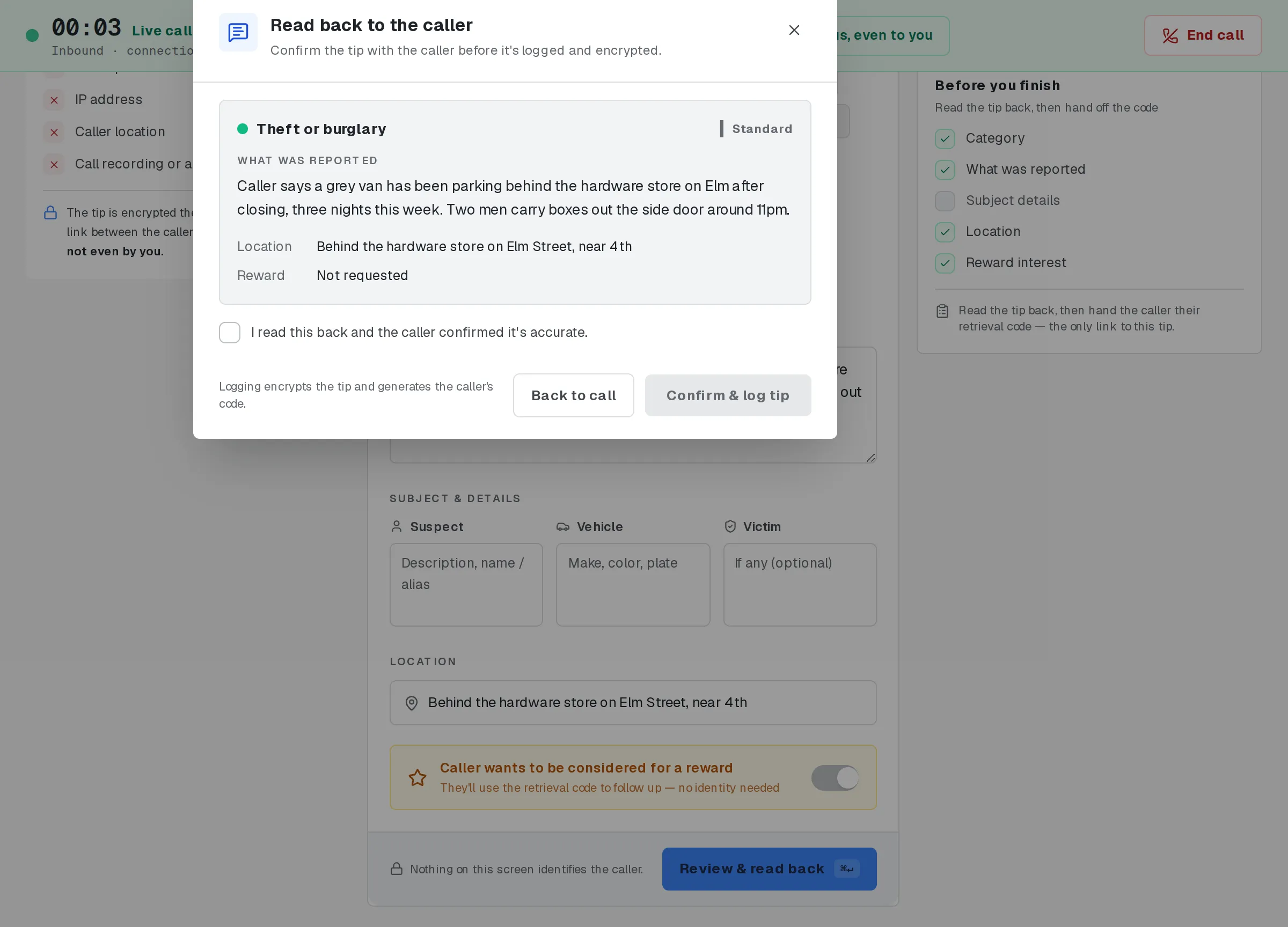
The read-back window, before the confirmation box is checked.
Read it back, then confirm
Section titled “Read it back, then confirm”- Read this back to the caller, in your own words. The window shows you what to cover. It doesn’t script how you say it.
- Once the caller confirms it’s right, check the box: “I read this back and the caller confirmed it’s accurate.”
- The window’s footer reminds you what’s about to happen: “Logging encrypts the tip and generates the caller’s code.”
- Click Confirm & log tip. This button stays dimmed until the confirmation box above it is checked.
What clicking confirm does
Section titled “What clicking confirm does”Clicking Confirm & log tip encrypts the tip where you’re sitting, before it’s sent anywhere, using a key only your program holds to open it later, unless the tip is later referred to another program, whose investigators can then read it too. The tip is then added to the queue, and the system mints the caller’s retrieval code.
A brief confirmation — “Tip logged” followed by the case number — appears once it goes through. The Review & read back button relabels to Tip logged, and a Show hand-off code link appears beside it, in case you close the hand-off screen and need to see the code again before you’re off the phone.
Reading the code to the caller, and everything that goes with that moment, is its own step: see Handing off the retrieval code.
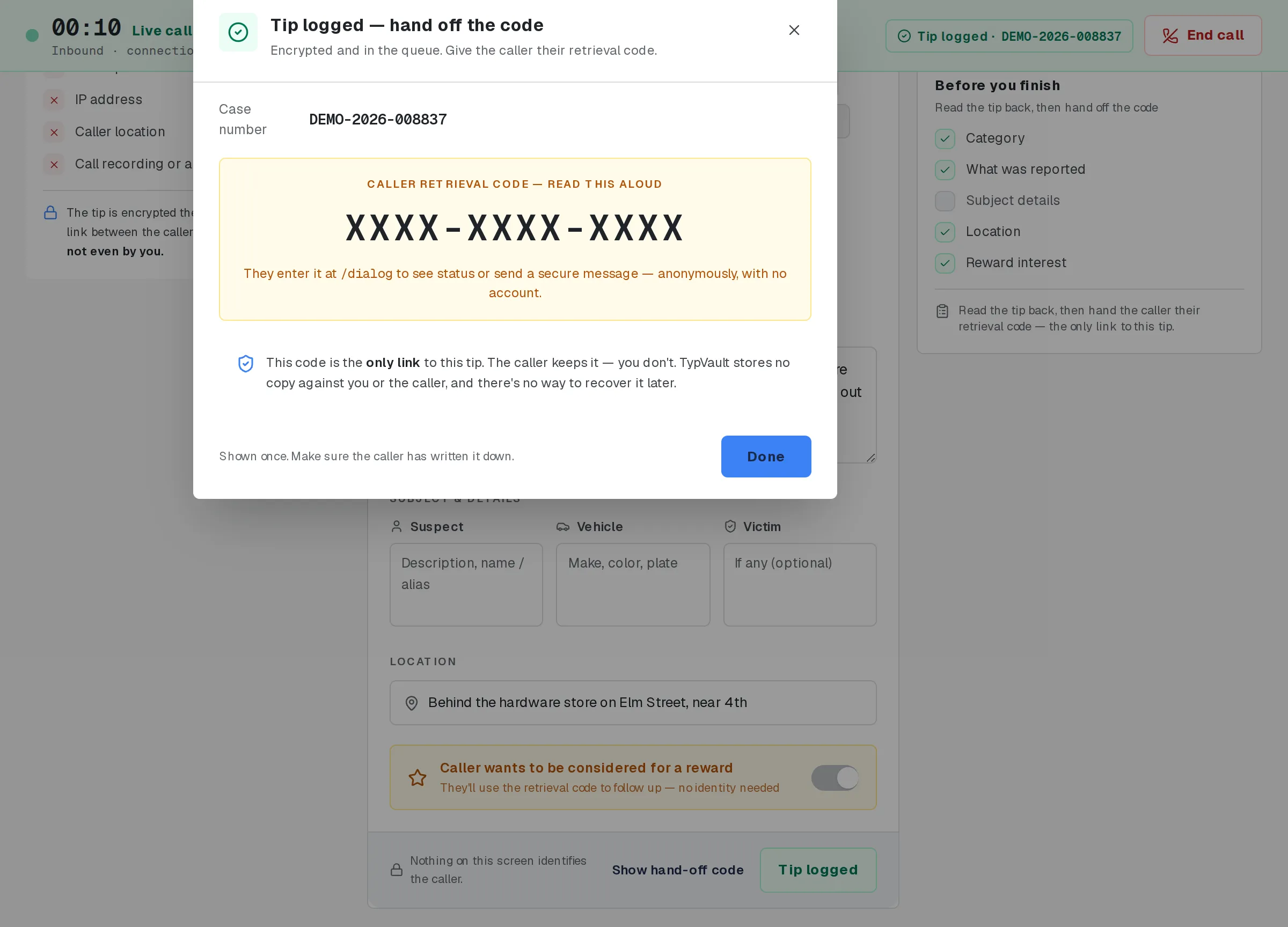
After the tip is confirmed: the case number and the retrieval code, shown once. The code is masked in this picture.
If you catch a mistake before you confirm
Section titled “If you catch a mistake before you confirm”Nothing is final until you click Confirm & log tip. If the read-back window is open and you notice something wrong — the wrong category, a detail to add — click Back to call to close the window without logging anything. Fix it on the capture screen, then open the read-back window again when you’re ready.
If the confirm step doesn’t go through
Section titled “If the confirm step doesn’t go through”If something goes wrong when you click Confirm & log tip — a connection problem, for example — the window shows an error in place of the confirmation, and nothing has been logged. Nothing you typed is lost. Wait a moment and try again.
Once it’s confirmed, that’s final
Section titled “Once it’s confirmed, that’s final”There’s no undo on this screen once you click Confirm & log tip. What to do if you catch a mistake after that point is a question for your program, not this screen. Ask your supervisor what your program’s correction procedure is.
Privacy discipline through this step
Section titled “Privacy discipline through this step”The rules that shaped the rest of the call still apply while you’re reading back and confirming. Don’t write anything from the read-back window down anywhere outside it. Treat the case number, once it appears, as staff-only: it’s for your program’s records, never something you read to the caller. Nothing you’re reading back — the narrative, the subject details, the location — leaves this screen as a separate copy of its own.
You never retain, at this step or any other:
- the caller’s retrieval code
- any caller identity fragment, anywhere, including in a local notepad
- any personal mapping between a caller and a case number
- any off-system copy of the tip’s content
Related
Section titled “Related”- Taking a call: the Call Center screen
- Handing off the retrieval code
- Conduit mode: your role on the call
- After the call
If a caller’s situation doesn’t match these steps, follow your program’s call-handling policy.